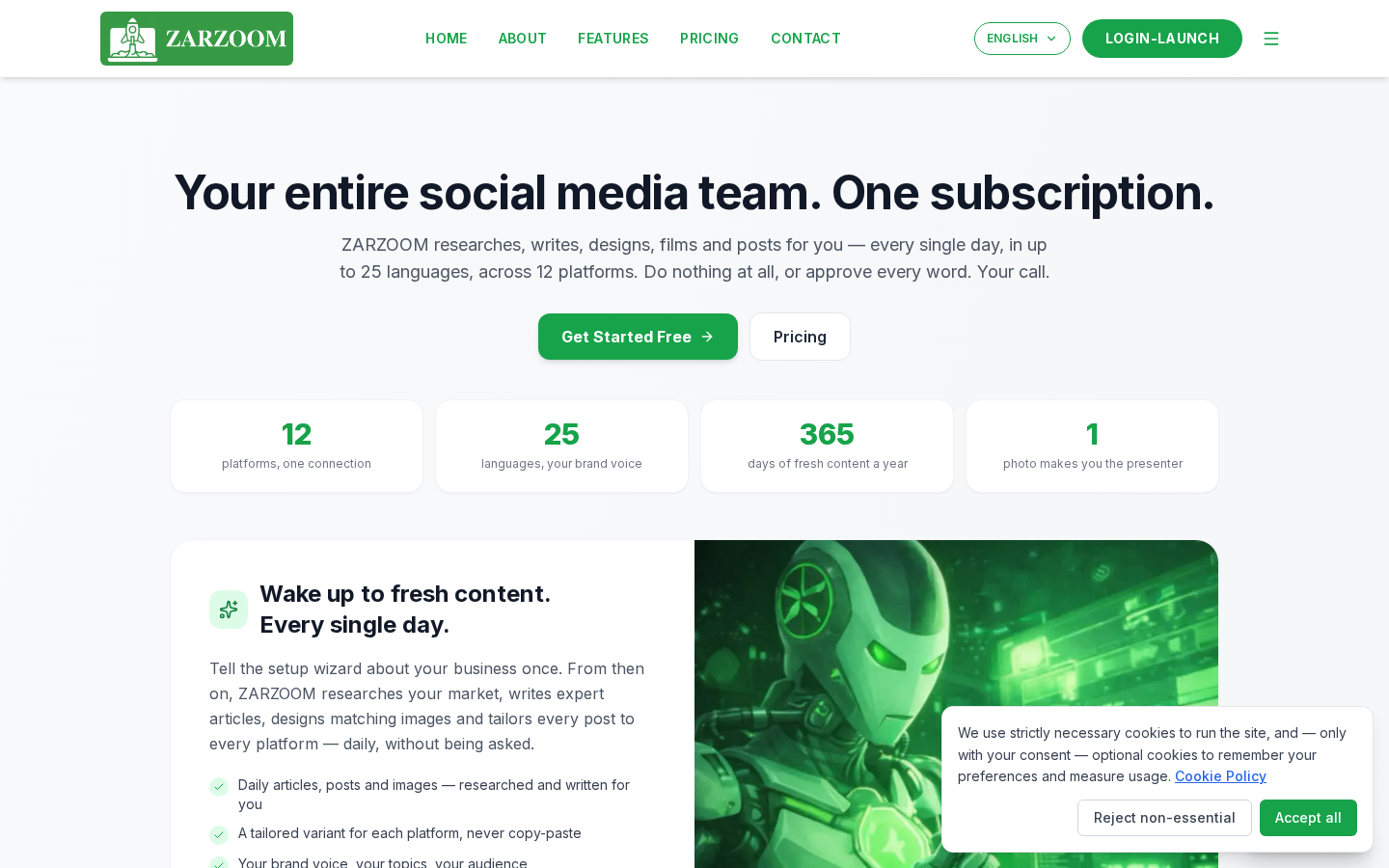
Step 1: Open the features page
Go to zarzoom.com/features in your browser. No account or sign-in is required to view this page.
Step 2: Read the feature overview at the top of the page
The page opens with a summary of what ZARZOOM does as an AI social-media autopilot for solo businesses. Read this section to confirm the product is relevant to your needs before going further.
Step 3: Browse the feature list
Scroll down to see the full list of features organised by category. Each entry describes a specific capability — for example, AI-generated post drafts, scheduling, or platform connections. Read each description carefully to understand what the feature does and how it fits into your day-to-day workflow.
Step 4: Note which features matter most to you
As you scroll, make a note (on paper or in a separate document) of the features you would actively use. This shortlist will help you compare plans in the next step without being distracted by capabilities you do not need.
Step 5: Review the plan comparison on the same page
Continue scrolling until you reach the plan comparison section. This section shows which features are included in each available plan. For every feature you noted in Step 4, check the corresponding column to see whether it is available on the plan you are considering.
Step 6: Use the feature details to identify your minimum viable plan
Work through your shortlist from Step 4 against the plan comparison table. Identify the lowest-tier plan that includes all the features you marked as essential. This is your minimum viable plan — you can always upgrade later if your needs change.
Step 7: Move to sign-up or sign-in when you are ready
Once you have decided which plan suits you, go to zarzoom.com/login-launch to create an account or sign in to an existing one. You will be able to select your chosen plan during the sign-up flow.
Good to know
- The features page is public and always up to date. You can return to zarzoom.com/features at any time — for example, before deciding to upgrade — to check whether new features have been added to higher-tier plans.
- Feature availability depends on your active plan. Browsing the features page shows you what is possible across all plans, but you will only have access to the features included in the plan you sign up for.
- If a feature is listed but unclear, check the rest of the help centre before contacting support. Many features have their own dedicated help guides that explain exactly how they work in practice.